How to Add Products to Your ChatPadi Storefront
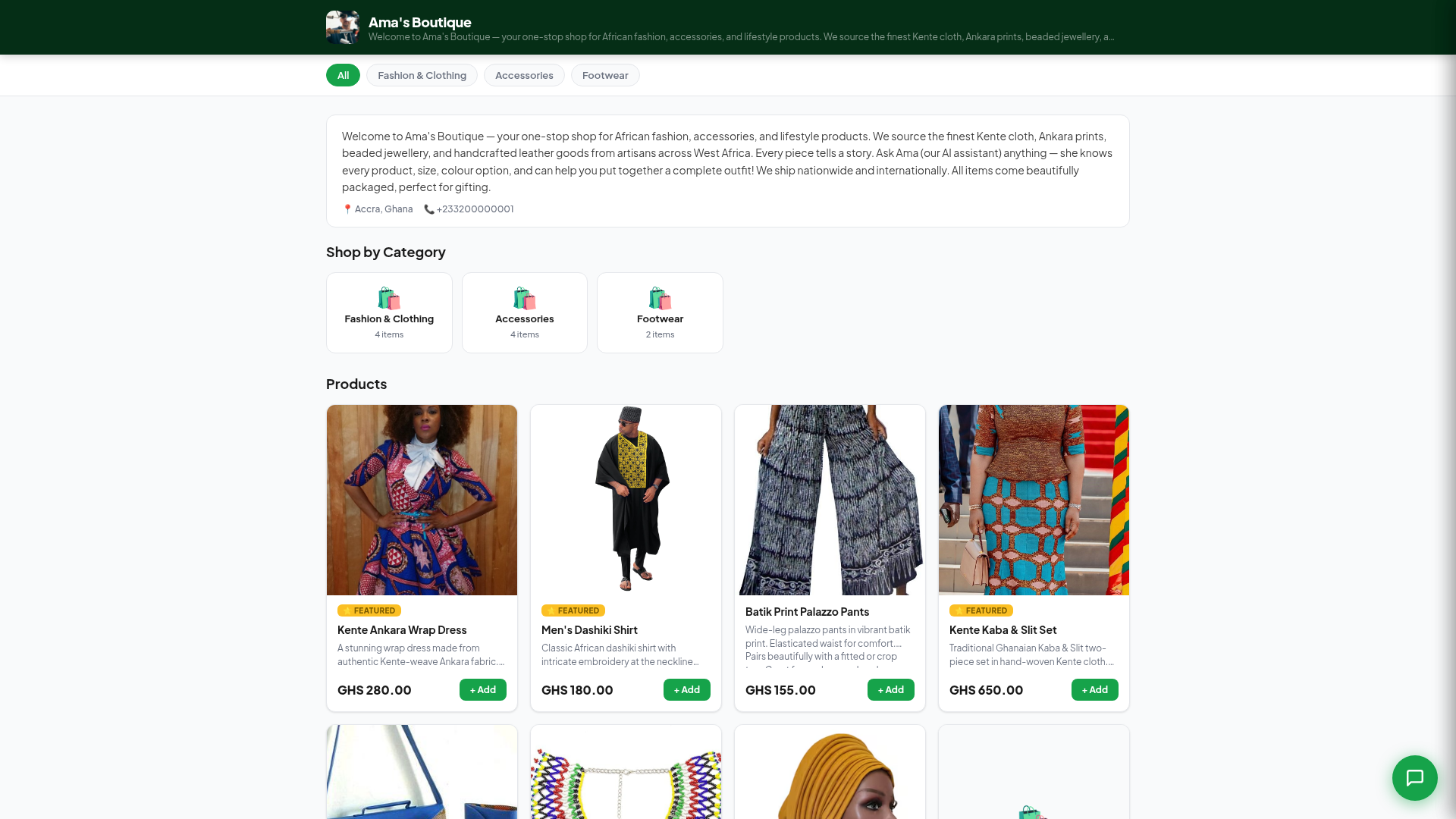
How to Add Products to Your ChatPadi Storefront
Your product catalogue is the foundation of everything Ama does. This guide walks you through adding products step by step, writing descriptions that actually sell, taking photos that convert, and organising your catalogue so customers can find exactly what they want.
Every seller who sets up a ChatPadi store quickly realises the same thing: Ama is only as good as what you put in your catalogue. When you write a detailed, accurate product description, Ama can answer almost any question a customer has about that product instantly and confidently. When you write a vague one, Ama struggles, customers ask follow-up questions, and conversations take longer to convert.
This guide covers how to add products, what to write, how to photograph them, how to handle different product types, and the ongoing habits that keep your catalogue working at full effectiveness over time.
Before you start: Have your product list, prices, and photos ready before you open the dashboard. Working with everything prepared in advance is significantly faster than adding products one at a time as you go looking for information. Most sellers find that preparing 10 products takes about 20 minutes and adding them to ChatPadi takes another 20 minutes.
Step-by-Step: Adding a Product
- Too generic: “Bag”
- Better: “Ankara Tote Bag”
- Best: “Handmade Ankara Tote Bag (Available in Small and Medium, 6 prints)”
How to Write Product Descriptions That Ama Can Sell From
The product description is where most sellers underinvest and where the biggest gains from a well-maintained catalogue come from. Here is the principle: write the description as if it is the only information Ama has about this product when a customer asks about it. Because it is.
A complete description answers the questions your customers ask most often before they have to ask them:
- What is it exactly? Material, construction, origin, style
- What sizes, colours, or variants are available?
- How does it fit, feel, or taste? (depending on product type)
- What is it suitable for? Occasions, use cases, recipients
- What is included? Packaging, accessories, add-ons
- How is it made or prepared? Especially for food and handmade products
- What do customers need to know before buying? Care instructions, allergens, sizing notes
Description: Beautiful handmade bag. Good quality. Available in different colours. Great gift idea.
Result: Customer asks “what colours do you have?” Ama cannot answer. Customer asks “what size is it?” Ama cannot answer. Customer asks “what material?” Ama cannot answer. Conversation stalls. Customer loses patience. Sale does not happen.
Description: Handmade from 100% Ankara fabric sourced in Accra. Available in Small (fits A5 documents, essentials) and Medium (fits a 13-inch laptop and daily essentials). Zip closure with internal slip pocket. Currently available in 6 prints: Royal Blue Kente, Red Geometric, Green Tribal, Gold Floral, Black and White Modern, and Brown Earth. Each bag is unique due to the handmade nature. Ideal for everyday use, work, or as a thoughtful gift. Price is GHS 85 for Small and GHS 105 for Medium.
Result: Ama can answer any question about colours, sizes, materials, use cases, and price. Customers get confident answers. Conversations convert.
Description Templates by Product Type
Different product types need different information in their descriptions. Here are starting templates for the most common seller categories on ChatPadi.
Product Photography That Works on ChatPadi
Customers on ChatPadi see your product photos in two places: the Shop tab when browsing, and in the chat when Ama shows them a product. Both contexts are viewed on a mobile phone screen. This means your photos need to be clear, well-lit, and focused on the product itself without requiring a large screen to appreciate.
For food products specifically: A photo of the finished dish on a clean plate or in a neat container, with good natural lighting, converts significantly better than a photo of the packaging or an unplated portion. If you do party pack catering, one photo showing the full spread for a party setting tells the customer far more about what they are getting than a description alone. OurInternetBusiness.com has a detailed guide on product photography for WhatsApp catalogs with practical tips that apply equally to ChatPadi.
Adding Variants (Sizes, Colours, Options)
When a product comes in multiple sizes, colours, or configurations at different prices, use the variants feature rather than creating a separate product listing for each combination. This keeps your catalogue clean and gives Ama a clear way to present options to customers.
In the product form, after filling in the base product details, scroll to the Variants section and add each combination:
- Name the variant clearly: “Small / Royal Blue”, “Medium / Red Geometric”, “Large / Gold Floral”
- Set the price per variant if they differ. If all variants cost the same, one price on the main product is sufficient.
- Set stock status per variant. If the small Royal Blue is out of stock but the medium Royal Blue is available, mark each individually. Ama will only offer available variants to customers.
If variants are complex to set up right now, a simpler approach: create one product listing and list all variants and their prices in the description. “Available in Small (GHS 85) and Medium (GHS 105). Available prints: Royal Blue, Red Geometric, Green Tribal, Gold Floral. Message us with your chosen size and print when ordering.” This is less elegant but works well enough while you get familiar with the dashboard.
Organising Your Catalogue with Categories
As your product count grows past 10 to 15 items, how you organise your catalogue starts to matter. Customers browsing the Shop tab of your store navigate by category. A well-organised catalogue makes it easy to find relevant products. An unorganised one makes customers leave.
Create categories that reflect how your customers think about what you sell, not how you think about your inventory:
- Fashion seller: Tops, Bottoms, Dresses, Accessories, New Arrivals is better than Inventory Group A, B, C
- Food seller: Rice Dishes, Soups, Pastries, Party Packs, Daily Specials
- Beauty seller: Skincare, Hair, Body, Sets and Bundles
- General retail: Under GHS 50, Bestsellers, Gifts, New In
A product can appear in multiple categories. A new dress that is also under GHS 100 can be in both “Dresses” and “Under GHS 100” simultaneously. Use this flexibility to surface products wherever a customer might be looking for them.
Keeping Your Catalogue Current
The maintenance habit that makes the biggest difference
A well-written catalogue that is allowed to go out of date causes specific, preventable problems. Ama quotes a price that has changed. Ama offers a product that has sold out. Ama describes a product that has been discontinued. Each of these creates a customer expectation that cannot be met, leading to frustration, disputes, and damage to your store’s reputation.
The maintenance habit that prevents this is simple: update the relevant product the moment something changes. Not at the end of the week. Not when you remember. The moment a price changes, open your dashboard and update it. The moment something sells out, mark it unavailable. The moment you get new stock, update the quantity and mark it back in stock. This two-minute habit per change saves significantly more time in customer dispute resolution than it costs.
- Price change: update within the hour it takes effect
- Out of stock: update the moment the last unit sells
- New product: add it before you start promoting it anywhere
- Discontinued product: remove or mark unavailable, do not leave it listed at an old price
- Seasonal items: create a Seasonal category, move items in and out rather than deleting and re-adding
For sellers also running a WooCommerce store alongside ChatPadi, OurInternetBusiness.com covers automating WooCommerce order and inventory management, which can help keep both systems in sync.
Your Product Setup Checklist
Before going live with any product
The test that matters most: After adding any product, go to your store link at chatpadi.app/store/yourname, open a chat with Ama, and ask her the questions your customers typically ask about that product. If Ama’s answers are accurate and helpful, the product is ready. If she says she does not have that information, your description is missing something. Fix it before customers find out.
Common Questions
How many products should I add before going live?
Five to ten well-described products is a better starting point than fifty vague ones. Customers browsing a clean catalogue of ten products with complete descriptions, accurate prices, and good photos have a better experience than customers scrolling through fifty products with incomplete information. Add your bestsellers first, get them right, then expand the catalogue over time.
Can I bulk upload products?
Check your current ChatPadi plan for bulk upload options. For sellers with large catalogues coming from another platform (Shopify, WooCommerce, or a spreadsheet), bulk import reduces the time to get a full catalogue live significantly. The individual product form is ideal for sellers adding products one at a time or maintaining a small catalogue.
Can I add the same product in different currencies?
Your ChatPadi store is configured for a primary currency based on your country setting. If you serve customers in multiple markets and currencies, the pricing is displayed in your store currency and customers paying with international cards (via Stripe or Flutterwave) pay the equivalent in their local currency at the current exchange rate. You do not need to list products in multiple currencies.
What if my product description is very long?
Longer and more complete is almost always better than shorter and vague, within reason. Ama does not read a description to the customer word for word. She uses the information in it to answer specific questions accurately. A description with 200 words of useful detail enables far better customer conversations than a 30-word description that leaves most questions unanswered. Do not worry about descriptions being too long. Worry about them being incomplete.
Ready to Build Your Catalogue?
Create your free ChatPadi store and start adding products. The better your catalogue, the better Ama sells for you.
Start Your Free StoreFree to start. No credit card required. Products go live immediately when saved.