How to Automate WhatsApp Order Confirmations for Your Online Store
How to Automate WhatsApp Order Confirmations for Your Online Store
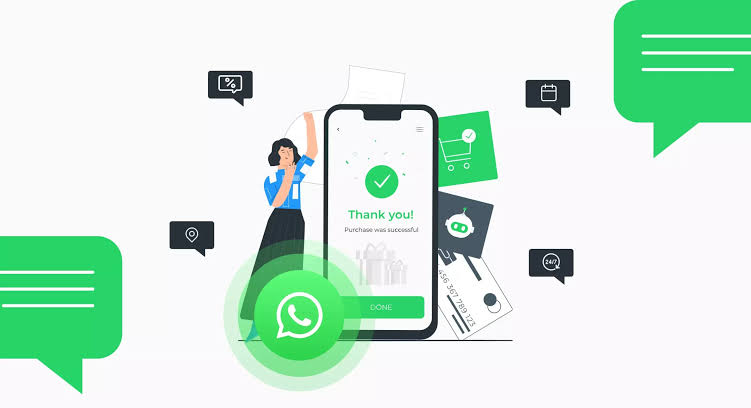
“Thanks for your order” shouldn’t require you to stop what you’re doing and type it out, every time, all day. This guide covers the WhatsApp 24-hour rule you need to understand first, the three real ways to automate order messages, and four ready-to-use templates — confirmation, shipping, delivery, and payment reminders.
If your store takes orders or payments and you’re still manually typing “Thanks for your order! We’ll get this packed and shipped” to every single customer, you’re spending time on a message that’s nearly identical every time — and the customer is waiting longer than they need to for confirmation that their money went through and their order is real.
This guide picks up directly from connecting Paystack to Make.com — Recipe 2 in that guide mentioned sending a WhatsApp confirmation via API. Here’s the full picture: how WhatsApp’s automation rules actually work, which of the three real methods fits your situation, and four message templates you can adapt today.
The Rule You Need to Understand First: The 24-Hour Window
Before choosing a method, it’s worth understanding why WhatsApp automation isn’t as simple as “send any message to any number whenever you want.” WhatsApp’s Business Platform distinguishes between two types of messages, and which one applies determines whether your automation needs a pre-approved template or not.
Session Messages vs Template Messages
The 24-hour customer service window
3 Real Ways to Automate WhatsApp Order Messages
| Method | How it works | Cost | Setup effort | Best for |
|---|---|---|---|---|
| Native Quick Replies | Pre-written messages in the free WhatsApp Business app, triggered manually by typing a shortcut (e.g. “/confirm”) | Free | 5 minutes | Very low volume — still manual, but faster typing |
| WhatsApp Business API + Make.com | A provider (Twilio, 360dialog, Termii, or Meta’s Cloud API directly) gives API access; Make.com triggers a message send when an event occurs (e.g. Paystack payment) | Per-message fees (often fractions of a cent to a few cents) + provider account | 1–3 hours initial setup, including template approval wait | Most growing sellers — genuinely hands-off, scales with volume |
| AI Conversational Commerce Agents | A platform connects to your WhatsApp number and handles order confirmations as part of broader conversational order-taking and customer service | Tiered subscription (varies by platform) | Varies — often includes guided setup | Sellers wanting confirmations bundled with broader WhatsApp automation (enquiries, catalogue, order-taking) |
Step-by-Step: API + Make.com Setup
This builds directly on the Custom Webhook scenario from the Paystack → Make.com guide. If you haven’t built that yet, start there first — Steps 1–4 of that guide (webhook trigger, filter for charge.success) are prerequisites here.
{{1}}, {{2}} for variable content (customer name, order reference, amount). Submit each template for approval — Meta reviews templates against its guidelines (no promotional language disguised as a utility message, clear and accurate content). Approval typically takes anywhere from a few hours to a couple of days.data.customer.first_name to {{1}}, data.reference to {{2}}, and data.amount ÷ 100 to {{3}} (or whichever order matches your template’s placeholders). The customer’s WhatsApp number needs to be available in the payload or your order data — if your checkout collects a phone number, ensure it’s included in metadata so it’s available at this step.233241234567 for a Ghanaian number rather than 0241234567). If your checkout collects numbers in local format, add a step to reformat before sending.4 Message Templates Ready to Adapt
Trigger: Paystack charge.success webhook
Variables: {{1}} customer first name, {{2}} order reference, {{3}} amount
This is the core message — it confirms payment was received and gives the customer a reference number for any future enquiry. Keep it short and reassuring; the goal is to immediately answer “did my payment work?”
Trigger: Order status updated to “Shipped” in your order sheet (separate automation — e.g. a Make.com scenario watching for status column changes, or triggered manually when you mark an order as packed)
Variables: {{1}} customer first name, {{2}} order reference, {{3}} tracking link or rider contact, {{4}} estimated delivery window
This message reduces “where is my order” questions by proactively giving status before the customer has to ask.
Trigger: Order status updated to “Delivered” — either via rider confirmation in a logistics platform, or manually marked
Variables: {{1}} customer first name, {{2}} order reference
This closes the loop, and is a natural point to ask for a review or repeat-purchase nudge — though anything beyond a simple thank-you may push this into Marketing template territory, so keep the core delivered confirmation as Utility and consider any follow-up as a separate message.
Trigger: A scheduled Make.com scenario checking for orders with status “Pending Payment” older than X hours (requires your checkout to log incomplete attempts — not all simple payment-link setups capture this)
Variables: {{1}} customer first name, {{2}} item/order description, {{3}} payment link
One of the highest-converting automated messages — many abandoned carts complete after a gentle reminder. Send once, 12–24 hours after abandonment; repeated reminders feel pushy and risk being marked as spam.
Build Your Order Confirmation Message
✍️ Quick Template Builder
Fill in your details — get a ready-to-submit template draft
Your draft order confirmation template
Troubleshooting Common Issues
| Issue | Likely Cause | Fix |
|---|---|---|
| Message fails to send — “template not found” | Template name in Make.com doesn’t exactly match the approved template name, or the template is still pending approval | Check the exact template name (case-sensitive) in your provider’s dashboard and confirm its status is “Approved,” not “Pending” or “Rejected.” |
| Message sends but variables show as “{{1}}” literally | The variable mapping step in Make.com wasn’t completed, or the field referenced is empty in the payload | Re-check the field mapping in the HTTP/provider module — click into each variable field and confirm it’s mapped to a payload field, not left as static placeholder text. |
| “Invalid phone number” error | Phone number isn’t in full international format, or includes spaces/symbols | Add a formatting step: strip leading zero, prepend country code (e.g. 233 for Ghana), remove spaces and dashes — resulting in a string like 233241234567. |
| Template rejected by Meta | Content reads as promotional (“50% off!” type language) when submitted under Utility category, or includes unclear/generic placeholder usage | Resubmit with strictly transactional language — confirm the order, state facts (amount, reference, status), avoid promotional phrasing or emojis that read as marketing. Keep “thank you for shopping with us” but remove anything resembling an offer. |
| Customer says they never received the message | Number format issue (sent to wrong/invalid number), or customer has blocked business messages | Verify the number was captured correctly at checkout. If correct and approved, check your provider’s delivery logs — a “delivered” status that the customer disputes may indicate they’ve adjusted notification settings rather than a delivery failure. |
5 Mistakes to Avoid
Frequently Asked Questions
Can I use my personal WhatsApp number for this?
No — automated, API-driven messaging requires a WhatsApp Business Platform number connected through a Business Solution Provider, which is a different setup from the WhatsApp Business app most sellers use day-to-day for manual chats. Some sellers maintain both: their existing WhatsApp Business app number for manual conversations and enquiries, and a separate number (or the same number migrated to API access, which providers can assist with) for automated transactional messages. Check with your chosen provider about whether your existing number can be migrated or whether a new number is needed.
Will customers know the message is automated?
Messages sent via the WhatsApp Business API typically display the same way as regular WhatsApp Business messages — with your business name and verified badge if applicable. There’s no “this is a bot” label by default. That said, well-written templates (like the examples above) don’t read as robotic — they read as a business that responds quickly and professionally, which is generally a positive signal to customers rather than something to hide.
What if my checkout doesn’t collect a phone number — only email?
This is common with simple Paystack payment links. You have a few options: add a phone number field to your checkout/order form if you control it, ask for the number as part of your WhatsApp ordering conversation before sending the payment link (so you already have it when payment completes), or fall back to email confirmation for customers where phone numbers aren’t available — email automation (via Gmail/Make.com) follows a similar pattern without WhatsApp’s template approval requirements, though open rates are typically lower than WhatsApp delivery rates.
How much does this cost at small scale?
Provider costs are typically per-message and vary by country and message category — for Utility template messages in many African markets, costs are often in the range of a fraction of a cent to a few cents per message, though exact pricing should be confirmed directly with your chosen provider as rates and Meta’s pricing structure are periodically updated. At 100 orders/month, even at the higher end of that range, the total messaging cost is typically a small fraction of what the time saved is worth — but check current rates before committing, since pricing structures do change.
Start With Order Confirmation, Then Layer On
Of the four templates, Order Confirmation (Template 1) delivers the most value for the least setup — it directly answers the question every customer has the moment they pay, and it’s the most likely to fall within the 24-hour session window if the order itself involved a WhatsApp interaction. Get that working end-to-end first, including the order log from the Paystack guide. Shipping and delivery updates (Templates 2 and 3) are natural next additions once your order status tracking is in place — they both depend on something updating order status, which is worth having built regardless of WhatsApp automation.
More at OurInternetBusiness.com
Practical guides on automation, online business systems, and growing income from Ghana and across Africa. Visit OurInternetBusiness.com and bookmark it.