How to Set Up Your ChatPadi Store in Under 10 Minutes
How to Set Up Your ChatPadi Store in Under 10 Minutes
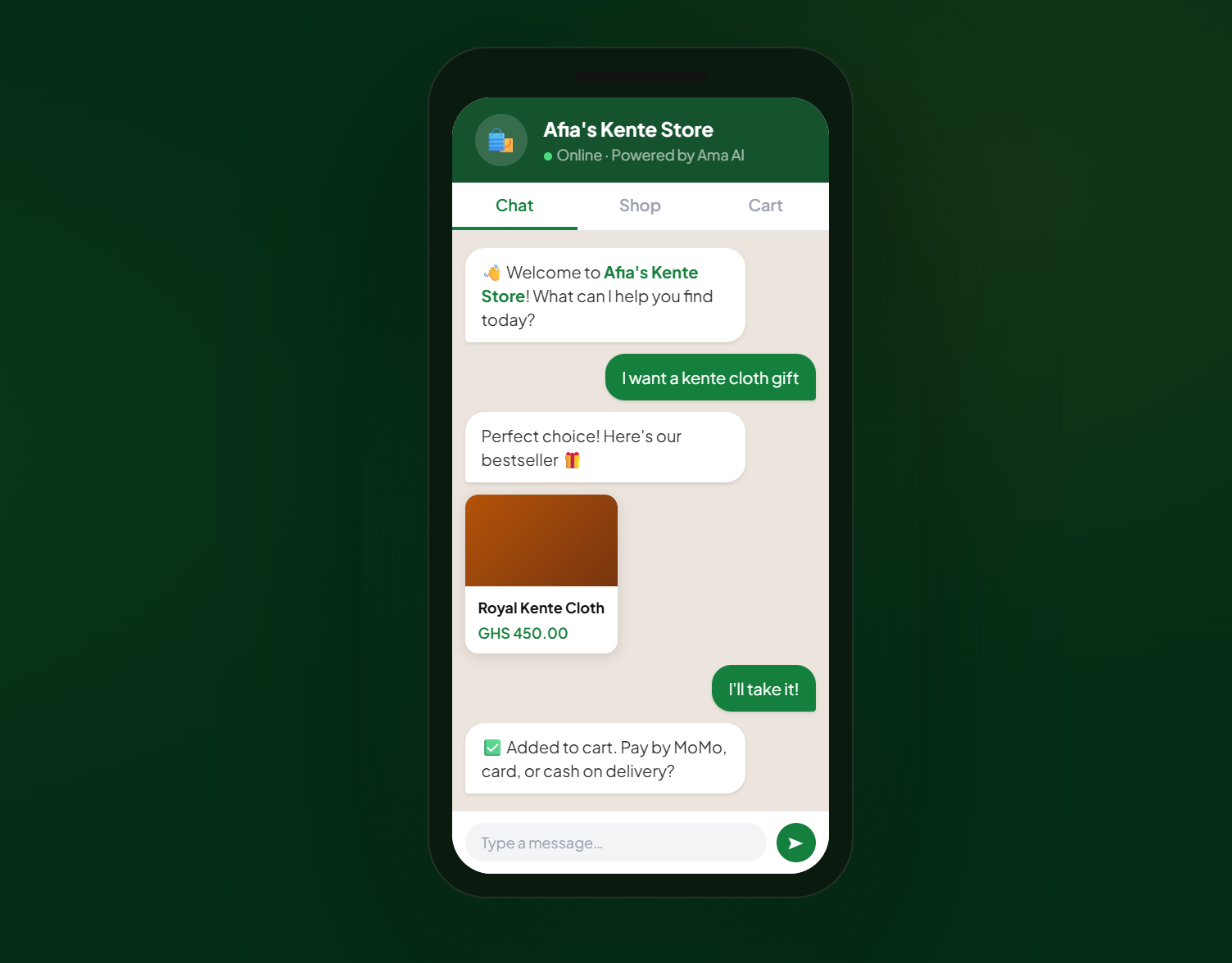
This is the complete setup guide. By the end of it you will have a live store with your products listed, your payment methods configured, and an AI agent called Ama ready to handle every customer conversation automatically. The whole process takes most sellers between 7 and 15 minutes.
Every article on this blog has mentioned that you can set up a ChatPadi store quickly. This is the article that actually walks you through it, screen by screen, decision by decision, so you know exactly what to expect before you start and exactly what to do at each step.
There are no technical requirements. You do not need a website, a developer, or any prior experience with e-commerce platforms. You need a ChatPadi account, your product information, and about ten minutes.
Before you start, have these ready: Your product names, descriptions, and prices. Photos of your products (at least one per product, on your phone is fine). Your WhatsApp Business number if you want to connect it. Your preferred payment methods (Paystack, Flutterwave, Stripe, Mobile Money, or cash on delivery).
The Three Steps to a Live Store
ChatPadi’s setup wizard has three steps. You do not need to complete all three in one session, but most sellers find they can do all of them in under ten minutes once they have their product information ready.
Step 1: Create Your Account and Set Up Your Store
- Store name: This is the name your customers will see when they visit your store and the name Ama uses to introduce herself. Use your actual business name exactly as it appears on your other channels. If you sell as “Abena’s Kitchen” on Instagram, use “Abena’s Kitchen” here.
- Country: Select Ghana, Nigeria, Kenya, or your operating country. This determines which payment methods and currencies are available to you by default.
chatpadi.app/store/abenas-kitchen. You can customise the slug if the default generated version is not what you want.
Step 2: Add Your Products
This is the most important step in the setup process. Ama’s ability to answer customer questions accurately depends entirely on what you put in your product catalogue. A product with a clear name, a detailed description, an accurate price, and a good photo will be sold effectively by Ama. A product with a vague name and no description will generate customer questions that Ama cannot answer well.
What to include for each product
- Generic: “Bag”
- Specific: “Ankara Tote Bag (Medium, 4 print options)”
Tips for building a strong catalogue
Step 3: Configure Your Payment Methods
ChatPadi supports multiple payment methods simultaneously. You can enable as many as are relevant for your customers. Each one requires the relevant account credentials from the payment provider.
Which payment methods should you enable? Enable Mobile Money if most of your customers are in Ghana or Nigeria. Add Paystack or Flutterwave for customers who prefer cards or online MoMo. Add Stripe if you have diaspora customers paying with international cards. You do not need to choose one: ChatPadi shows all enabled options to the customer at checkout and they pick whichever suits them. For a detailed guide on setting up Paystack with full webhook automation, OurInternetBusiness.com has a complete walkthrough: How to Connect Paystack to Make.com.
Setting Your Store Policies
Before you share your store link, add your store policies. This is not a legal formality. It is how Ama answers some of the most common customer questions accurately.
In your ChatPadi dashboard, go to Store Settings and add:
- Shipping Policy: Where you deliver, how long it takes, and how much it costs. Be specific about areas you cover. If you deliver to Greater Accra same-day and other regions in 2 to 3 days, say that exactly. Ama uses this to answer delivery questions immediately without the customer needing to wait for a manual reply.
- Returns and Refunds Policy: Whether you accept returns, under what conditions, and the timeframe. A clear policy here prevents disputes and gives customers confidence to buy. Ama can explain the policy to a customer who asks before purchasing.
- Privacy Policy: Required for customers to trust that their data is handled properly. A basic privacy policy is included in ChatPadi’s default templates. Review it and add your business name and contact details.
Do not skip the policies. Sellers who skip this step find that Ama cannot answer certain common questions accurately, which reduces customer confidence and increases the number of conversations that need to be escalated to the seller manually. Five minutes on policies saves hours of manual follow-up.
Connecting Your WhatsApp Business Number
This is the step that activates Ama’s ability to handle incoming WhatsApp messages on your behalf. Without this step, Ama handles conversations through your ChatPadi store web interface only. With it, every message that arrives at your WhatsApp Business number goes to Ama first.
In your ChatPadi dashboard, navigate to Settings and then WhatsApp Integration. The connection process uses Meta’s WhatsApp Cloud API and requires:
- A WhatsApp Business account (the business app, not the personal app)
- A Meta Business Manager account linked to your WhatsApp number
- Following the step-by-step connection flow in your ChatPadi dashboard
What happens after WhatsApp is connected
Once your WhatsApp Business number is connected to ChatPadi:
- Every incoming customer message on WhatsApp goes to Ama first
- Ama reads the message, understands the customer’s intent, and responds based on your catalogue and policies
- You receive a notification in your ChatPadi dashboard when a new order is placed or when a conversation needs your attention
- You can view the full conversation history for every customer in your dashboard
- You can step into any conversation at any time if you want to respond personally
- Customers who message your WhatsApp number outside business hours receive an immediate, helpful response instead of silence
For sellers who want to understand the technical side of WhatsApp Business API automation, OurInternetBusiness.com has a detailed guide on setting up automated WhatsApp customer support.
Sharing Your Store Link
Your ChatPadi store is now live. Your store link is chatpadi.app/store/[your-store-name]. Share it everywhere your customers find you:
- Instagram bio: Replace whatever is currently in your bio link with your ChatPadi store URL. For detailed guidance on making this work effectively, see Why Your Instagram Bio Link Is Costing You Sales.
- WhatsApp status: Post a short video or photo with your store link and a clear message: “Order directly from the link below. Ama answers all questions instantly.”
- WhatsApp Business profile: Add your store link as the website in your WhatsApp Business profile settings so it appears on your business page.
- TikTok bio: If TikTok is a channel for your business, your ChatPadi link belongs there too.
- Facebook page: Add the link in the About section of your Facebook page.
- Printed materials: Generate a QR code from your store link (free tools like qr-code-generator.com work well) and add it to packaging, business cards, or market stall signage.
Test your store before sharing widely. Visit your own store link on your phone, browse the Shop tab, and start a conversation with Ama. Ask a question about one of your products. Make sure the answer is accurate and the experience is what you want your customers to see. If anything looks wrong, fix it in your dashboard before posting the link publicly.
Your Setup Checklist
Everything you need before going live
What Happens After You Go Live
Once your store link is live and you have started sharing it, here is what to expect in the first few days.
First conversations: The first time a customer messages your store and Ama responds, review the conversation in your dashboard. Check whether Ama’s answers are accurate and helpful. If a question came up that Ama could not answer well, it is usually because the relevant information is not in your product descriptions or policies. Add it and the next customer who asks the same question will get a better answer.
First orders: New orders appear in your ChatPadi dashboard as they come in. Each order shows the customer’s name, contact details, the items they ordered, their delivery address, and the payment status. For paid orders, the payment is confirmed in the dashboard. For cash on delivery orders, the payment status updates when you mark it as received after delivery.
Ongoing maintenance: Your store needs two types of regular maintenance. First, keep your product catalogue accurate: update stock status when items sell out, update prices when they change, add new products when you get new stock. Second, review escalated conversations once or twice a day and respond to any that need your personal attention. Everything else Ama handles automatically.
The most common setup mistake: Sellers who write vague product descriptions and then wonder why Ama is not converting customers. Ama can only sell what you have described. If your product description is “Nice bag, good quality,” Ama will say “Nice bag, good quality” when a customer asks about it. Spend time on your descriptions. That time is the highest-ROI investment you can make in your ChatPadi store.
Common Setup Questions
Can I set up the store without connecting WhatsApp first?
Yes. Your ChatPadi store works as a standalone web storefront without WhatsApp connected. Customers visit your store link in their browser, browse your products, and chat with Ama through the store’s built-in chat interface. Connecting WhatsApp adds the additional channel where Ama handles incoming messages on your WhatsApp Business number. Most sellers set up the store first, test it, and then connect WhatsApp once they are happy with the experience.
What if I only have a few products to start with?
Start with what you have. A store with three well-described, well-photographed products that Ama can sell confidently is better than waiting until you have fifty products to launch. You can add products at any time from your dashboard and they go live immediately.
Can I change my store name or URL after setup?
Your store name (the display name customers see) can be changed at any time in your store settings. Your store URL slug (the part of the link after /store/) can be changed, but if you have already shared the original link widely, updating it means your old link will no longer work. Choose your slug carefully before your first share and try not to change it after that.
How do I know when a new order comes in?
You receive an email notification when a customer submits payment for an order. You can also check your dashboard at any time to see all orders, their payment status, and the conversation that led to each order. For sellers who want real-time notifications via Telegram or other channels alongside their dashboard, OurInternetBusiness.com covers order management automation in detail.
Is the free plan enough to get started?
Yes. The free Starter plan gives you a live store, Ama handling customer conversations, and the ability to take and process orders. It is designed to let you experience the full value of ChatPadi before committing to a paid plan. See the pricing page for the current limits on each plan and what the paid tiers add.
Your Store Is 10 Minutes Away
Create your free ChatPadi store, add your products, configure your payments, and share your link. Ama starts handling customer conversations the moment your first visitor arrives.
Create Your Free StoreFree to start. No credit card required. No coding needed.