How to Set Up a Zero-Website Storefront (WhatsApp Catalog + Google Form + Payment Link + Canva Bio Page)
How to Set Up a Zero-Website Storefront Using Free Tools
A complete online store — product discovery, order capture, payment collection, and a single shareable link that holds it all together — built entirely from free tools you can set up this week. No website. No monthly subscription. No developer.
Most “start selling online” guides assume you need a website. You don’t — not at first, and often not at all. The businesses this guide is built for: a food seller taking orders via WhatsApp, a fashion seller who posts on Instagram, a tailor or salon taking bookings, a handmade goods maker. The tools covered individually elsewhere in this series — WhatsApp Catalog, Google Form, Paystack Payment Links — become a complete storefront when they’re assembled correctly and tied together with a single link the customer can tap.
This guide assembles the system. Each component has its own deep-dive guide linked from this one — here you get the overview, the customer journey, the Canva bio page (the piece not covered anywhere else), and how to wire everything together.
The Customer Journey: What They Experience
Before building anything, understand what the customer does from first discovery to completed payment — because each tool in this guide handles one step of that journey, and the gaps between tools are where orders get lost.
The Four Components
Your catalog is the product browsing experience — what replaces the “shop” page of a website. Customers tap it, see every product with a photo, price, and description, and can message you directly from any item page.
What to do for this guide:
- Add every product with a photo, price, and description — the WhatsApp Catalog guide covers this in full
- Create 2-5 Collections to organise items (e.g. “Food,” “Beverages,” “Party Packs” — or “New In,” “Bestsellers,” “Under GHS 100”)
- In each item’s Link field, paste your Google Form URL — this means a customer reading a product page has a direct “Order Now” link right there
The catalog link is what you’ll put on your Canva bio page under “View Products.”
The form is the checkout page — where the customer submits their order with their name, contact details, what they want, and delivery information. The Apps Script from the Google Form guide sends them a confirmation email the moment they submit, and sends you an alert.
What to do for this guide:
- Build the form as described in the Google Form guide — name, email, phone, product, quantity, delivery choice, address
- Update the form’s confirmation message (Settings → Presentation → Confirmation message) to say: “Thanks for your order! You’ll receive a payment link by email within [X time]. WhatsApp us at [number] if you have any questions.”
- Copy your form’s shareable URL — this is your “Place an Order” link on the bio page
- Also add this URL to the Link field of every WhatsApp Catalog item — the connection between browsing and ordering
The payment link is how money moves. For this storefront setup, there are two approaches — pick one based on whether your pricing is fixed or variable:
Fixed pricing (same price every time): Create a dedicated Payment Link in your Paystack dashboard for each product or package. When an order comes in for that product, you send the customer the specific link for it. Takes 30 seconds per order.
Variable pricing (custom amounts): Use Paystack’s “Pay with amount” link — a customer enters the amount themselves. Less clean, but works for custom orders, bundles, or orders where delivery cost varies. Alternatively, Flutterwave has a similar feature.
What to do for this guide:
- Create Payment Links for your most common orders in your Paystack/Flutterwave dashboard
- Save these links somewhere accessible — a note on your phone or a column in your order Sheet labelled “Payment Link”
- After each order comes in via the form, copy the appropriate link and email/WhatsApp it to the customer
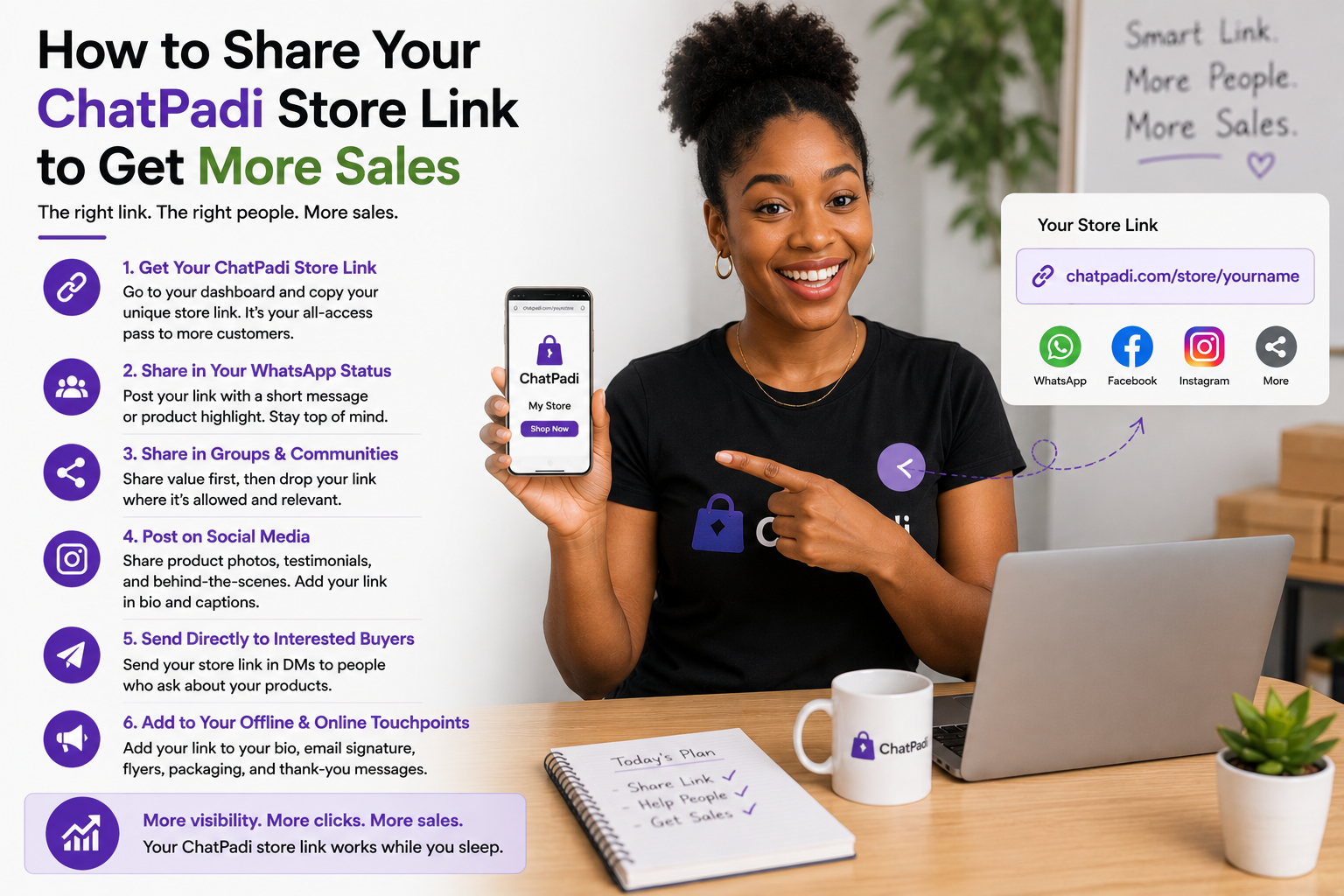
- For the bio page, create one general “Pay Here” link — useful for customers who want to pay before messaging
The bio page is the storefront entrance — the single URL you put in every bio, every message, every flyer. When someone taps it, they see your business name, a short description, and clear buttons to browse your products, place an order, pay, and contact you on WhatsApp. This is the new piece not covered elsewhere in the series.
Canva has a free “Website” feature that publishes a one-page link-in-bio style page at a Canva URL (canva.site/yourname or similar) — no hosting, no domain required, and it looks polished on mobile.
Building the Canva Bio Page (Step by Step)
This is the piece most guides skip. Here’s how to build it from scratch:
- Profile photo/logo — your business logo, or a clear photo of your products. Square, minimum 400×400px.
- Business name — exactly as it appears everywhere else (WhatsApp, Instagram, packaging)
- One-line description — what you sell + where you deliver. Example: “Homemade Ghanaian food · Accra delivery daily · Orders via WhatsApp”
- 🛍️ View Our Products → your WhatsApp Catalog link
- 📋 Place an Order → your Google Form URL
- 💳 Pay for an Order → your general Paystack payment link
- 💬 WhatsApp Us →
https://wa.me/233XXXXXXXXX(replace with your number, no spaces or +) - 📍 Our Location / Hours → (optional) Google Maps link or a simple text page
yourname.my.canva.site. This is your bio link. Copy it.- Instagram bio — the link field
- WhatsApp Business bio — the Website field in your profile
- Facebook Page — the website field
- TikTok bio — if applicable
- Flyers and packaging — as a QR code (Canva can generate one: share the link → QR code)
What the Customer Sees at Each Step
What Your Bio Page Looks Like on a Phone
Orders via WhatsApp
This is all the customer needs to see. Four buttons covering the four things they want to do: browse, order, pay, or ask a question. Clean. Mobile. No scrolling through a cluttered feed to find your prices. No asking “how do I order?” in a WhatsApp message.
Swap the emoji for your actual category (👗 for fashion, 💇 for salon, 📦 for general products). Change the colours to your brand palette. The structure stays the same.
When to Stay with This System vs When to Build a Website
Common Mistakes to Avoid
Frequently Asked Questions
Can I use this if I already have an Instagram or Facebook page?
Yes — and the bio page makes those pages work harder. Currently if someone visits your Instagram, they see posts and maybe a link to your WhatsApp. With the Canva bio page in that link slot, the same visit now gives them a clear path to browse, order, and pay — without you being actively present in the conversation. The social media pages become discovery channels that feed into a functioning order system instead of a dead end at your WhatsApp.
Does the Canva bio page work on Android and iPhone?
Yes — Canva’s published pages are mobile-optimised and work in any smartphone browser. The customer doesn’t need the Canva app. They tap the link, the page opens in their browser, and they tap your buttons. WhatsApp Catalog and Google Form links open the relevant apps (WhatsApp and the browser Form) seamlessly on both platforms.
What if I want to upgrade the bio page design later?
You can edit your Canva design at any time and republish — the URL stays the same. This means you can redesign, add new buttons, change your photos or colours, and anyone who taps the same link gets the updated version immediately. This is one of the advantages over a static PDF or image-based link page: you can iterate without changing the URL.
What’s the limitation of the payment step being manual?
The main limitation is time: every order requires you to manually send a payment link, which adds a step between “order received” and “payment completed.” At low order volumes this is manageable. At higher volumes it becomes a bottleneck — and some customers drop off during the wait. The Make.com automation upgrade (connecting the Google Form submission to an automatic Paystack payment link via email) removes this manual step entirely. That upgrade is covered in the Paystack + Make.com guide.
Can I accept Mobile Money payments through the Paystack link?
Yes — Paystack Payment Links support MTN MoMo, Telecel Cash, and AirtelTigo Money for Ghana customers, alongside card payments. When you send a customer the link, they choose their preferred payment method at Paystack’s checkout. No separate MoMo setup needed — it’s included once Paystack is configured for your account.
Four Tools, One Storefront, Zero Website
A Canva bio page as the entrance. A WhatsApp Catalog as the product shelf. A Google Form as the checkout. A Paystack payment link as the till. Individually, each does one job. Connected — bio page links to catalog, catalog items link to form, form confirmation tells customers a payment link is coming, payment link closes the sale — they become a complete purchase experience that runs while you sleep.
The manual step that remains — sending the payment link after each order — is the one piece worth automating once volume justifies it. Until then, the system as described here handles more order volume than most small businesses generate, at zero monthly cost, with tools that take a few hours to build and then just run.
More at OurInternetBusiness.com
Practical guides on automation, online business systems, and growing income from Ghana and across Africa. Visit OurInternetBusiness.com and bookmark it.