How to Track and Manage Orders on ChatPadi
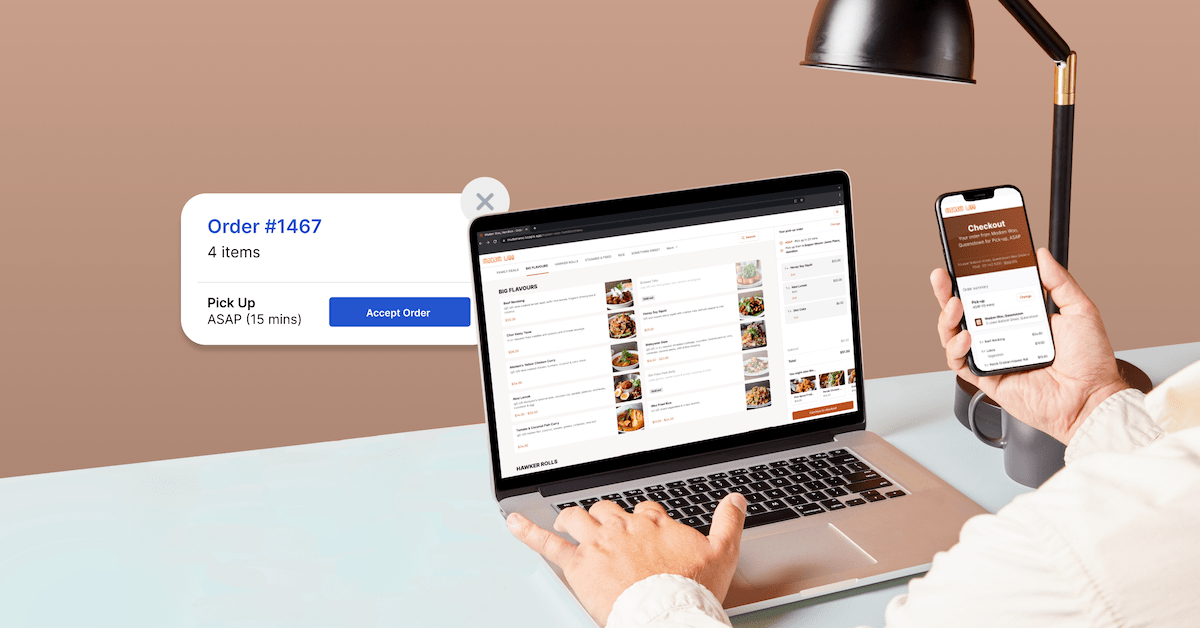
How to Track and Manage Orders on ChatPadi
Once Ama starts taking orders automatically, your job shifts from answering messages to processing fulfilment. This guide covers your order dashboard, how to read each order, how to update order status, how customer tracking works, and the daily routine that keeps everything running smoothly.
One of the most significant shifts sellers experience after setting up ChatPadi is that their role in the sales process changes completely. Before, you were the person who answered questions, took orders, arranged payment, and tracked everything manually across WhatsApp, a notes app, and your memory. After, Ama handles all of that automatically. Your job becomes processing confirmed, paid orders and shipping or delivering them.
This guide explains your order dashboard, the order lifecycle from placement to delivery, how to update statuses, how customers track their orders, and what your daily management routine should look like.
Your Order Dashboard
Every order Ama takes appears in your ChatPadi seller dashboard under the Orders section. This is your single source of truth for everything order-related. You do not need to search through WhatsApp conversations, check a spreadsheet, or remember anything. Every order, from every channel, is here.
Understanding Order Statuses
Every order on ChatPadi moves through a series of statuses that reflect where it is in the fulfilment process. You update these statuses manually as each order progresses. When you update a status, the customer receives an automatic notification by email.
Why updating statuses matters beyond the dashboard: Every status update you make triggers an automatic email notification to the customer. When you mark an order as Dispatched, the customer receives an email telling them their order is on its way with their tracking link. This reduces “where is my order?” messages to Ama significantly, because customers are proactively informed at every stage. Sellers who keep statuses current report a noticeable drop in follow-up enquiries from customers.
Your Daily Order Management Workflow
Once your store is running with Ama handling conversations, your daily interaction with ChatPadi is primarily in the order dashboard. Here is the workflow that keeps everything organised without taking more than 20 to 30 minutes per day for most sellers.
How Customer Order Tracking Works
Every order gets a public tracking page
When an order is confirmed and paid on ChatPadi, the customer automatically receives a confirmation email containing a unique tracking link. The tracking page at the link shows the customer their order details and the current status in real time.
The tracking page shows the customer their order summary (products, quantities, delivery address), current status and status history with timestamps, and contact information to reach the seller if needed. It updates automatically each time you update the order status in your dashboard. No customer messaging required from either side.
Customers can also ask Ama for their order status at any time by messaging your WhatsApp number or chat interface with a question like “where is my order?” Ama looks up their order by phone number or reference and relays the current status from the dashboard.
The impact on “where is my order?” messages
Before ChatPadi, “where is my order?” is one of the most common and time-consuming customer messages that sellers deal with manually. Each one requires finding the right chat thread, checking whatever system you use to track orders, and typing a reply.
With ChatPadi’s tracking system, two things change. First, customers who received the tracking link can check for themselves without messaging you. Second, customers who do message Ama about their order get an instant, accurate status update without any involvement from you. The result for most sellers is a significant reduction in order status enquiries as a proportion of all incoming messages.
For sellers who want to build even more sophisticated order tracking and notification automation, OurInternetBusiness.com has a guide on automating order management with Make.com that covers webhook-triggered status updates and multi-channel notifications.
Handling Special Order Situations
Cancellations
If you need to cancel an order (stock ran out, delivery not possible to the customer’s area, or the customer requests a cancellation), update the status to Cancelled in your dashboard. Add a note explaining the reason. The customer receives an automatic cancellation notification. If they have already paid, initiate the refund through your payment gateway (Paystack or Flutterwave dashboard) and note the refund reference in the order. For direct MoMo payments, you refund directly to the customer’s MoMo number and record the transaction in the order notes.
Partial orders
If a customer ordered multiple items and one is out of stock, contact the customer directly (you can message them from the conversation view in your dashboard) before processing. Agree on whether to proceed with the available items and refund the unavailable one, wait for restocking, or cancel the whole order. Once agreed, update the order notes and proceed accordingly. Do not dispatch a partial order without customer agreement first.
Cash on delivery orders
For COD orders, the payment status shows as Pending until your delivery confirms cash collection. When the delivery is complete and cash is received, update both the payment status (to Paid) and the order status (to Delivered) in your dashboard simultaneously. This keeps your financial records accurate and triggers the appropriate customer notification.
Disputed orders
If a customer disputes an order (claims they did not receive it, received the wrong item, or received a damaged product), these conversations are typically escalated to you by Ama automatically. Open the escalated conversation in your dashboard, read the full context, and respond directly. For genuine issues, a prompt resolution, whether a replacement, partial refund, or full refund, is almost always the right approach. The cost of the resolution is nearly always lower than the cost of a customer who posts publicly about a bad experience.
Document everything in order notes: When resolving disputes, refunds, or unusual situations, add notes to the order record in your dashboard. This creates an audit trail that protects you if the situation is revisited later and helps you identify patterns if the same issue arises repeatedly (which often points to a product, packaging, or delivery process that needs fixing).
A Suggested Daily Routine for Order Management
What this routine replaces: Before ChatPadi, most of this time was spent answering WhatsApp messages about products, taking orders manually, chasing payments, and sending manual order updates. After ChatPadi, that time goes entirely to order preparation and dispatch. The same hours produce more output because they are spent on work that only you can do, rather than on repetitive messaging that Ama now handles automatically.
Common Questions
Can I export my order data to a spreadsheet?
Your ChatPadi dashboard allows you to export order data as a CSV file from the Orders section. This is useful for accounting, inventory reconciliation, and building a customer list for future marketing. The export includes order reference, customer details, products, quantities, amounts, payment method, and current status. For sellers who want to build automated reporting from this data, OurInternetBusiness.com has a guide on building a simple order tracking system in Google Sheets that can complement your ChatPadi dashboard for reporting purposes.
What happens to orders if I lose internet access?
Ama continues to handle conversations and take orders regardless of your internet access, because she runs on ChatPadi’s servers, not your device. Orders placed while you are offline appear in your dashboard when you reconnect. The only thing affected by your offline status is your ability to manually confirm MoMo payments and update order statuses. Gateway payments (Paystack, Flutterwave) confirm automatically without any action from you.
Can a customer cancel their own order?
Customers can request a cancellation by messaging Ama. Ama acknowledges the request and escalates it to you for action. The actual cancellation in the dashboard is always a seller action. This ensures you have visibility and agreement on every cancellation before it is processed, preventing accidental cancellations and giving you the opportunity to resolve the underlying reason before processing the refund.
How do I handle an order where the customer paid but I cannot fulfil it?
Cancel the order in your dashboard, note the reason, and initiate a refund through the relevant payment channel. Then message the customer directly from the order’s conversation view to explain the situation and confirm the refund is being processed. Proactive communication in this situation, rather than waiting for the customer to chase you, makes a significant difference to how the customer perceives the experience even when things go wrong.
Start Managing Orders the Smart Way
Set up your free ChatPadi store. Let Ama take the orders. Focus your time on fulfilment, not messaging.
Start Your Free StoreFree to start. No credit card required. Orders start appearing the moment Ama is live.