WhatsApp Connection Guide
How to Connect Your WhatsApp Business Number to ChatPadi
Connecting your WhatsApp Business number is the step that activates Ama on WhatsApp. Once connected, every message that arrives at your WhatsApp number goes to Ama first. She handles the conversation, takes the order, and collects payment while you focus on everything else. This guide walks you through the connection process from start to finish.
Uses Meta WhatsApp Cloud API
No coding required
Takes 10 to 20 minutes
Your number stays yours
Your ChatPadi store works without WhatsApp connected. Customers can visit your store link in a browser, browse your products, and chat with Ama through the built-in web interface. But connecting WhatsApp adds the channel where most of your customers already spend their time, which typically means significantly more conversations and more sales.
This guide covers what you need before you start, the exact connection steps, what changes after the connection is live, and how to troubleshoot the most common issues.
What You Need Before You Start
The WhatsApp connection uses Meta’s WhatsApp Cloud API. This requires a few things that your personal WhatsApp account does not need. Check you have all of these before beginning the setup process.
📱
WhatsApp Business App
The business version of WhatsApp, not the personal app. Free to download from the App Store or Google Play.
✓ If you are already using WhatsApp Business, you have this
🏢
Meta Business Manager Account
A free Meta Business Manager account at business.facebook.com. Required to register your number with the WhatsApp Business API.
→ Create free at business.facebook.com
📞
A Phone Number for WhatsApp
The number must not already be registered to a personal WhatsApp account. Can be your existing business number if it is currently on WhatsApp Business.
→ Must be receivable for a one-time verification code
✅
ChatPadi Account
Your ChatPadi seller account with your store created and at least some products added.
✓ You already have this if you are reading this guide
🪪
Business Verification Documents
Meta may require basic business verification during the API setup process. Have your business name and contact details ready.
→ Varies by country and account history
⏱️
20 Minutes
The connection process takes 10 to 20 minutes for most sellers when all the above prerequisites are in place.
✓ Set aside uninterrupted time for the setup
Important: If your WhatsApp Business number is currently registered as a personal WhatsApp account (the regular green app, not the Business app), you will need to migrate it to WhatsApp Business first. This is a one-time process that preserves your chat history. Download the WhatsApp Business app and follow the prompts to migrate your existing number.
Step-by-Step: Connecting Your WhatsApp Number
1
ChatPadi Dashboard
Open the WhatsApp Integration settings
Log into your
ChatPadi seller dashboard. In the left navigation, click Settings and then WhatsApp Integration. You will see the connection panel with a Connect WhatsApp button. Click it to begin the guided setup flow.
Dashboard → Settings → WhatsApp Integration → Connect WhatsApp
2
Meta Login
Log in with your Facebook or Meta Business account
ChatPadi uses Meta’s official embedded signup flow to connect your WhatsApp number. A popup will open asking you to log in to Facebook or your Meta Business Manager account. Use the account that has admin access to the Meta Business Manager you want to connect to. If you do not have a Meta Business Manager yet, you can create one during this step by clicking “Create a business account” in the popup.
Use the same Facebook account that owns or has admin access to your WhatsApp Business number. If your WhatsApp Business is managed through a different Meta account than your personal Facebook, use the business account credentials here.
3
Business Selection
Select or create your Meta Business portfolio
After logging in, the embedded signup flow asks you to select a Meta Business portfolio (formerly called Meta Business Manager). If you have an existing one, select it. If you are setting this up for the first time, click the option to create a new business portfolio. Enter your business name and contact details. The business name you enter here will be visible to customers when they message your WhatsApp number, so use your actual trading name.
4
WhatsApp Business Account
Create or select a WhatsApp Business Account (WABA)
A WhatsApp Business Account (WABA) is the container that holds your business’s WhatsApp presence in Meta’s system. If you already have a WABA connected to your phone number, select it. If this is your first time setting up the WhatsApp Business API, create a new WABA. Give it your business name and select your business category and timezone.
The WABA is different from the WhatsApp Business app on your phone. The app is the mobile interface you use day to day. The WABA is the account registration in Meta’s system that enables API access. They both relate to the same business, but are separate things.
5
Phone Number
Add your WhatsApp Business phone number
Enter the phone number you want to connect to ChatPadi. This is the number your customers will message. Include the country code (for Ghana, this is +233 followed by the number without the leading 0). The number must:
- Be able to receive a verification code via SMS or voice call
- Not already be registered as a WhatsApp Business API number through another platform
- Be accessible to you right now so you can enter the verification code immediately
If your number is currently on the regular WhatsApp Business app and you connect it here, it will be migrated to the API. The WhatsApp Business app on your phone will no longer handle incoming messages for this number directly. Ama will handle them through ChatPadi instead. Your chat history and contacts are preserved.
6
Verification
Enter the verification code sent to your number
Meta sends a 6-digit verification code to your number via SMS. Enter it in the verification field within the embedded signup flow. The code expires after a few minutes, so have your phone ready before you reach this step. If the SMS does not arrive within 60 seconds, you can request a voice call as an alternative delivery method.
If you are in a country where SMS delivery from international numbers is sometimes slow, use the voice call option immediately rather than waiting. The voice call typically arrives faster than the SMS in those cases.
7
Permissions
Grant ChatPadi permission to manage messages on your number
The final step in the embedded signup flow asks you to grant ChatPadi the permissions it needs to send and receive messages on your WhatsApp Business number. Review the permissions listed and click Continue or Finish. ChatPadi needs message sending and receiving permissions to allow Ama to handle conversations. Without these, the connection cannot work.
These permissions allow ChatPadi to send and receive WhatsApp messages on your behalf through your number. They do not give ChatPadi access to your Facebook account, your personal messages, your Messenger, or anything outside your WhatsApp Business number and the associated WABA.
8
Connection Confirmed
Your WhatsApp number is now connected to ChatPadi
Once the embedded signup flow is complete, you are returned to your ChatPadi dashboard where your WhatsApp Integration settings now show your connected number and a status of Active. Ama is now live on your WhatsApp number. Send a test message to your number from a different phone and confirm that Ama responds correctly within a few seconds.
The test message should trigger an immediate response from Ama. If you receive no response after 30 seconds, check the connection status in your dashboard and the troubleshooting section below.
What Changes After the Connection Is Live
Before connection
- Customers message your number and wait for you to reply manually
- Messages outside your hours go unanswered until morning
- You manage all conversations personally, one at a time
- Orders are captured through back-and-forth messaging, prone to errors
- Payment is arranged manually per order
After connection
- Ama responds to every incoming message instantly, at any hour
- Customers get accurate answers to product questions immediately
- Ama takes orders, collects delivery details, and processes payment automatically
- You receive notifications when orders are confirmed, not for every message
- You see all conversations and orders in your dashboard whenever you check
What Ama does with your WhatsApp messages
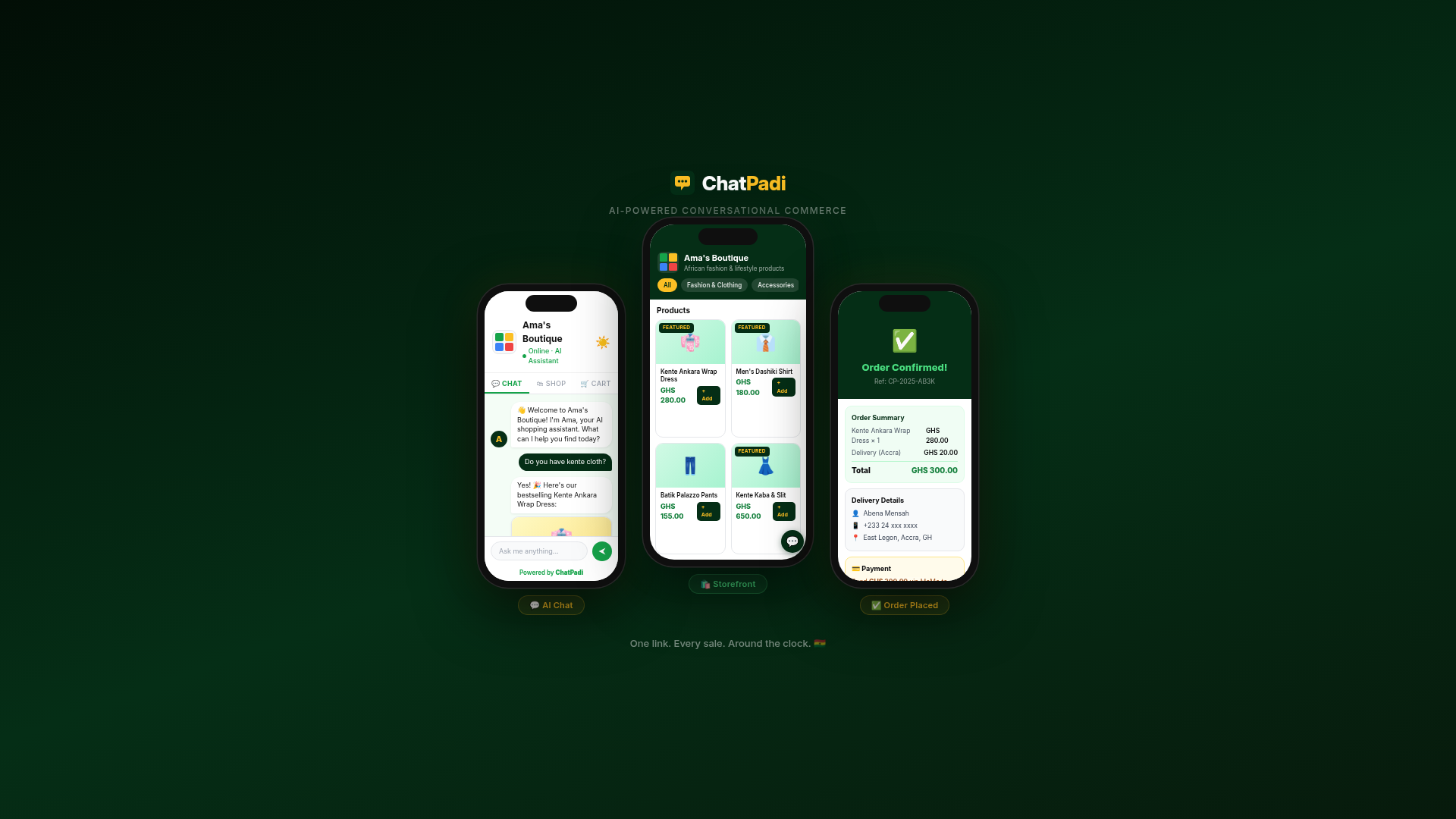
Once connected, every message that arrives on your WhatsApp Business number is processed by Ama. She reads the customer’s message, checks your product catalogue and store policies, and composes a relevant, accurate response within seconds. A customer asking about a product at midnight receives an instant response. A customer placing an order on a Sunday receives a complete order confirmation automatically.
You can see every conversation in your ChatPadi dashboard. You can step into any conversation at any time if you want to respond personally. You receive an immediate notification when a conversation is escalated because it needs your judgment, such as a significant complaint or a custom bulk order request.
For a detailed walkthrough of exactly what Ama handles in each conversation, including the escalation triggers and what the customer experience looks like from first message to confirmed order, see How Ama Handles Customer Conversations Automatically.
For sellers who want to understand the broader landscape of WhatsApp automation, OurInternetBusiness.com has a practical guide on setting up automated WhatsApp customer support that covers the three tiers of automation in detail.
Setting Up Your WhatsApp Business Profile
After connecting your number, take five minutes to complete your WhatsApp Business profile. This is the information customers see when they visit your profile page before or during a conversation.
In your WhatsApp Business app (or through Meta Business Manager), update:
- Business name: Your trading name exactly as customers know it
- Profile photo: Your logo or a clear product photo that represents your brand
- Business description: One to two sentences on what you sell and who you serve
- Business category: Select the most accurate category for your type of business
- Business hours: Your hours can still be listed even though Ama operates 24/7. Listing hours sets expectations for when you personally check escalated conversations.
- Website: Your ChatPadi store link:
chatpadi.app/store/yourname
- Email: A contact email for business enquiries
The website field matters: Adding your ChatPadi store link to the WhatsApp Business profile means any customer who visits your profile page sees your store link and can tap it to browse your products. This is an additional discovery path beyond your Instagram bio and WhatsApp status. For guidance on making the most of your store link across all your profiles, see Why Your Instagram Bio Link Is Costing You Sales.
Troubleshooting Common Connection Issues
⚠️ The verification code SMS did not arrive
Meta’s verification SMS occasionally delays, especially for numbers in certain African markets where international SMS delivery is inconsistent. Wait 60 seconds and then use the “Call me instead” option to receive the code by voice call. The voice call typically arrives faster than SMS when there is a delivery issue.
If neither SMS nor voice call delivers the code, confirm that the number you entered includes the correct country code and that the number can receive calls. Try a different number format if needed (with country code, without leading zero).
⚠️ My number is already registered to another platform
If your WhatsApp Business number is currently connected to another WhatsApp Business API provider (such as a previous chatbot platform or CRM), it needs to be migrated or released before connecting to ChatPadi. Contact the previous provider to release the number from their platform, then retry the connection in ChatPadi.
A number can only be connected to one WhatsApp Business API platform at a time. Migration from one platform to another typically takes minutes once the release is initiated by the previous provider.
⚠️ The connection shows as Active but Ama is not responding to messages
This usually means the permission grant in Step 7 was not completed fully, or the webhook between Meta and ChatPadi needs to be re-established. In your ChatPadi dashboard, go to Settings, then WhatsApp Integration, and check the connection status. If it shows Active but Ama is not responding, click Reconnect or Refresh Webhook.
If reconnecting does not resolve the issue, disconnect the number entirely in your dashboard and repeat the connection process from Step 1. The second attempt typically resolves permission issues that caused a partial first connection.
⚠️ Meta Business Manager account says I need business verification
Meta sometimes requires business verification for WhatsApp Business API access, particularly for newer Meta Business Manager accounts. Business verification involves submitting a business registration document, utility bill, or other official document proving your business exists. This is Meta’s process and requirement, not ChatPadi’s.
Submit the required documents in your Meta Business Manager account under Business Settings, then Security Centre, then Business Verification. Verification typically completes within one to three business days. You can continue setting up your ChatPadi store while waiting for Meta’s verification to complete.
⚠️ I want to use a new number that no customer knows yet
You can connect any number to ChatPadi, including a new dedicated business number that you have not yet shared with customers. Once connected and tested, start sharing the new number in your Instagram bio, WhatsApp status, and other channels. If you have existing customers on your old number, you can post a status update letting them know you have moved to a new number for orders.
A dedicated business number connected to ChatPadi is often cleaner than using a personal number, particularly if the personal number has existing WhatsApp chats you want to keep separate from your business conversations.
Managing the Connection Over Time
Once your WhatsApp number is connected and Ama is live, there is very little ongoing maintenance required for the connection itself. The most common reasons the connection needs attention are:
- Phone number changes: If you change your business WhatsApp number, you will need to disconnect the old number and connect the new one in your ChatPadi dashboard.
- Meta policy updates: Occasionally Meta updates their Business API terms and may require you to re-verify or update your business information in Meta Business Manager.
- Message template approvals: If you want to send proactive messages to customers (such as order status updates or promotional messages) outside the 24-hour response window, these require Meta-approved message templates. ChatPadi handles standard order confirmations automatically, but custom promotional messaging requires template submission through Meta’s system.
- Monthly limits: New WhatsApp Business API accounts start with messaging tier limits that expand automatically as you send more messages and maintain good customer experience ratings. ChatPadi manages this automatically as your store grows.
Keeping your Meta Business Manager account in good standing: Meta monitors WhatsApp Business API accounts for policy compliance. Sending unsolicited messages, having a high block rate from customers, or violating Meta’s commerce policies can result in message sending restrictions. Keep your messages helpful and relevant, and ensure Ama always offers customers a clear way to stop receiving messages if they want to. ChatPadi is configured for compliant messaging by default.
Common Questions
Can I still use the WhatsApp Business app on my phone after connecting?
After connecting your number to the WhatsApp Business API through ChatPadi, the WhatsApp Business app on your phone will show your existing chat history but will no longer receive new incoming messages for that number. New messages are handled by Ama through the ChatPadi system. You can still send messages from your ChatPadi dashboard, which is where you manage conversations going forward. Some sellers keep the app installed to access their contact list and past chat history, but active messaging moves to the ChatPadi dashboard.
Will my existing WhatsApp chats and contacts be lost?
Your existing chat history and contacts are not deleted when you connect your number to the API. The chat history remains accessible in the WhatsApp Business app. However, new conversations from the point of connection onwards are handled by ChatPadi and visible in your ChatPadi dashboard, not the app. Your contacts remain in your phone as normal.
Can I disconnect my number from ChatPadi if I want to go back to manual WhatsApp?
Yes. In your ChatPadi dashboard under Settings and then WhatsApp Integration, there is a Disconnect option. Disconnecting releases your number from the API. You can then re-register it on the WhatsApp Business app to return to manual messaging. This is fully reversible. Most sellers who try it do not want to go back to manual messaging once they have experienced the difference, but the option is always there.
Does ChatPadi support multiple WhatsApp numbers for one store?
Check your current ChatPadi plan for multi-number support. Higher plan tiers typically support connecting more than one WhatsApp number to a single store, which is useful for businesses with separate numbers for different regions or product categories.
Connect WhatsApp and Let Ama Take Over
Set up your free ChatPadi store, connect your WhatsApp Business number, and start receiving automated orders from every customer who messages you, day or night.
Start Your Free Store
Free to start. No credit card required. WhatsApp connection takes 10 to 20 minutes.